
CM3 can send and receive commands to and from host devices such as PC, PLC, and HMI via RS-232C serial communication. The following methods are available for communication.
-
The dedicated software, COOL WORKS QUICK
-
Terminal software on Windows such as Tera Term
Communication Software Overview
COOL WORKS QUICK
COOL WORKS QUICK (hereafter CWQ) is CML compatible utility software with a user-friendly interface that assists easy operation of CM3. With CWQ, you can easily set and save parameters and data, stream data in graphs, and more. The latest version of CWQ and its manual are available for free on MUSCLE CORPORATION's website (https://musclecorp.com/motion-en).
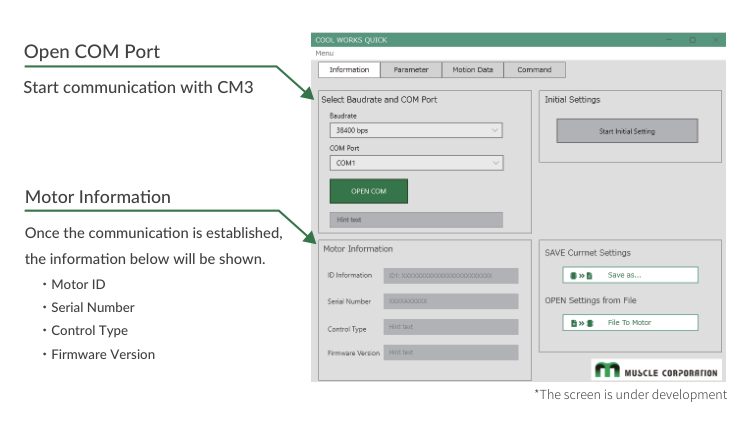
Establish communication with CM3
If the following information is displayed when powered on, communication between the PC and CM3 is established. If communication is not successful, please review the communication conditions.
Settings for host devices such as PLC and HMI, and Windows terminal software such as Tera Term
Communication conditions must be set as follows.
|
Item |
Setting |
|---|---|
|
Baud rate |
38400 |
|
Data |
8 |
|
Parity |
NONE |
|
Stop |
1 |
|
Flow Control |
NONE |
Select Control Type
Once communication is established, select the control type. The control type can be selected from the initial setup wizard.
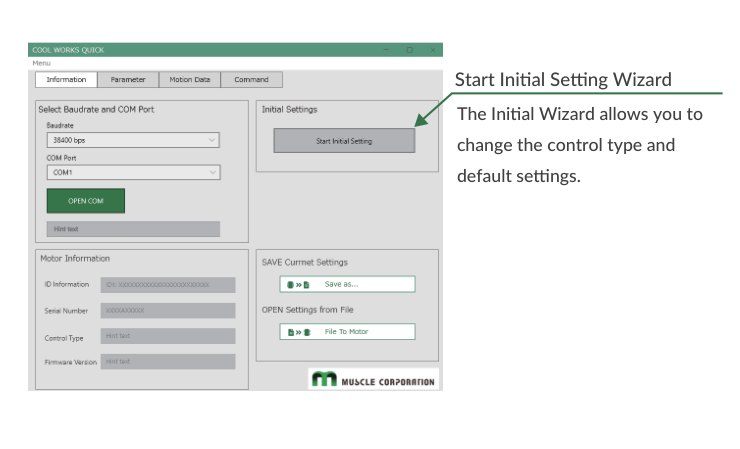
Step 1. Click the button below to open the Initial Setup Wizard.
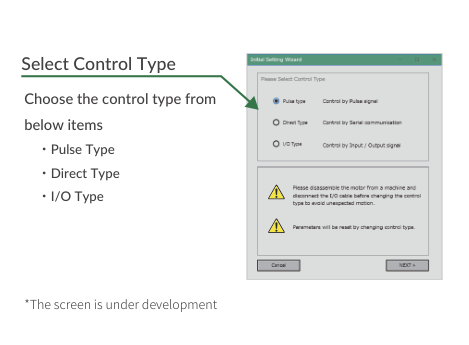
Step 2. When the Initialization Wizard opens, select a control type. The wizard offers Pulse Type, Direct Type, and I/O Type; Pulse Type is selected as the factory default. Please select the control type you intend to use.
Default Setting (Pulse Type)
The default settings for Resolution and pulse input method are as follows.
|
Item |
Default |
Values that can be set |
|---|---|---|
|
Resolution |
1000 ppr |
300 to 12000 ppr |
|
Pulse Input Method |
CW/CCW |
CW/CCW, Step/Direction, A-phase/B-phase |
-
When no change is required: Input the pulse signal from the controller and operate the motor.
-
When changing settings: Connect the PC and CM3, then change the settings following the steps in Change Basic Settings below.
Change Basic Settings (Pulse Type)
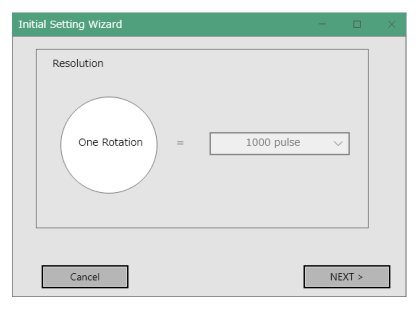
After selecting the control type, select the Resolution and pulse input type.
Resolution Setting
Select the number of pulses per revolution. For details on Resolution, see Resolution (K1) on the Detail of Various Settings page.
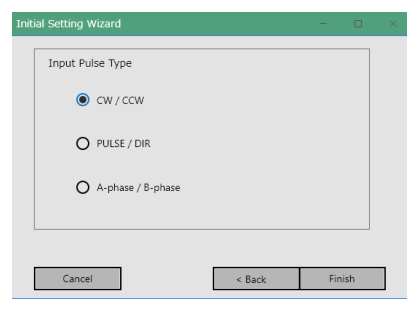
Pulse Input Type Setting
Select the pulse method to be input to CM3. For details on the pulse input method, see Positioning Operation on the Various Functions page.
Other Settings
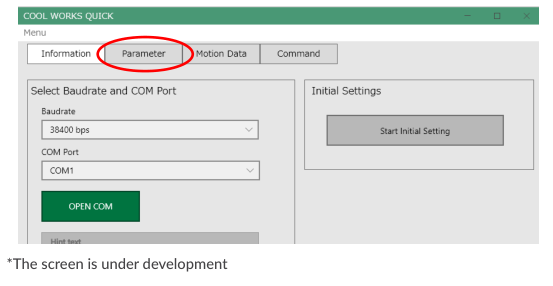
You can display all the setting items by clicking the Parameter tab shown below. The setting items are explained on the CML (COOL MUSCLE Language) and Detail of Various Settings pages.