

A show can have a video or audio file attached — a performance reference, a music track, or rehearsal footage. Contours plays it in step with the show, so you can shape motion against it while you build, record (chapter 10), and test (chapter 13).
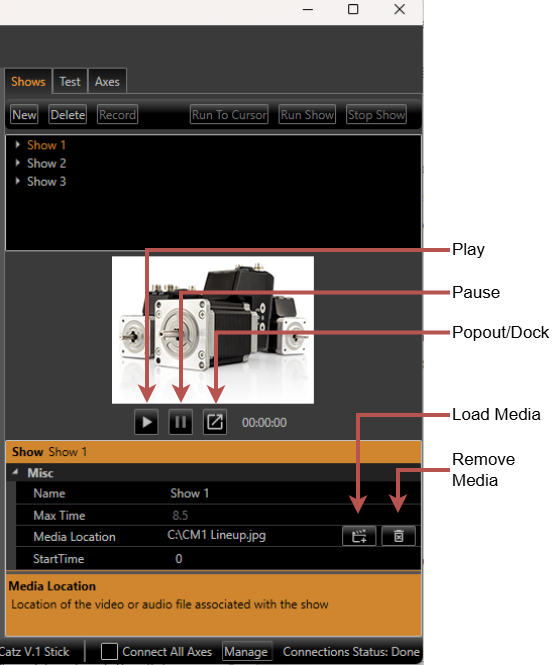
Figure 15. The Media card on the Shows tab: Add media and Clear media beside the file name, and the video with its play, pause and pop-out buttons.
Adding media to a show
-
On the Shows tab, select the show. Its Media card appears below the show list. If the card is collapsed, click the arrow at the right of its title to open it.
-
In the Media card, click Add media (the film icon) and choose the file. The card shows the file's name; point at the name to see the full path.
-
To remove the media, click Clear media (the bin icon).
Contours plays the common video and audio formats that Windows can play, such as MP4, MOV, WMV, and MP3. Video recorded in portrait on a phone is shown upright. An audio-only file plays sound and shows the playback time, with no picture.
The video panel
The show's video appears in a panel in the Media card on the Shows tab, on the Record screen, and on the Test tab. It is the same player everywhere — one picture, one soundtrack, one playback position. Each panel has:
-
Play video and Pause video.
-
Pop out / dock video — shows the video in its own window, or brings it back.
-
The playback time, shown as position / length.
When a show has no media, the panel shows No media. If the file can't be found, it shows Media file not found (see chapter 16).
Keeping the video in step with the chart
-
Dragging the chart cursor, dragging the cursor on the zoom bar under the chart (chapter 7), clicking the path in the path view (chapter 8), or using Run to cursor moves the video to the same time and pauses it. The picture updates as you drag.
-
Run show plays the video from the cursor position once the motors start moving. Stop show pauses it.
-
Switching between the Shows, Test, and Axes tabs pauses the video and keeps its position.
-
While a recording or a test run is in progress, the panel's Play video and Pause video buttons are disabled so the video can't drift out of step. The recording and run controls start and stop the video instead.
Popping the video out
Click Pop out / dock video to show the video in its own window. The window:
-
Can be resized; the picture keeps its shape.
-
Can be moved to a second monitor — useful for watching the video full size while you record.
-
Minimises and closes with Contours.
-
Shows the show's name in its title bar.
While the video is popped out, the panels in the main window keep their buttons but hide the picture. Click Pop out / dock video again, or close the window, to bring the picture back. Contours remembers the window's position and size until you close Contours.
Where media files should live
Contours saves the media location relative to the project file. To move a project to another folder or PC, copy the project file and its media together, keeping the same folder layout — for example, a Media folder next to the project file.
-
Media on a different drive from the project is saved with its full path.
-
When you open a project and the saved media location doesn't exist, Contours also looks for a file with the same name in the project's folder.
-
Save As to a different folder updates the saved media location automatically.
-
Changing or clearing a show's media counts as an unsaved change, so Contours asks you to save it.
Tip. Keep each project and its media together in one folder, so the project can be backed up, copied, or moved as a single unit.