

When you launch Contours you land on the main window. It has five regions: a title bar, a menu strip, a central chart area, a right-hand panel with tabs, and a status bar along the bottom.
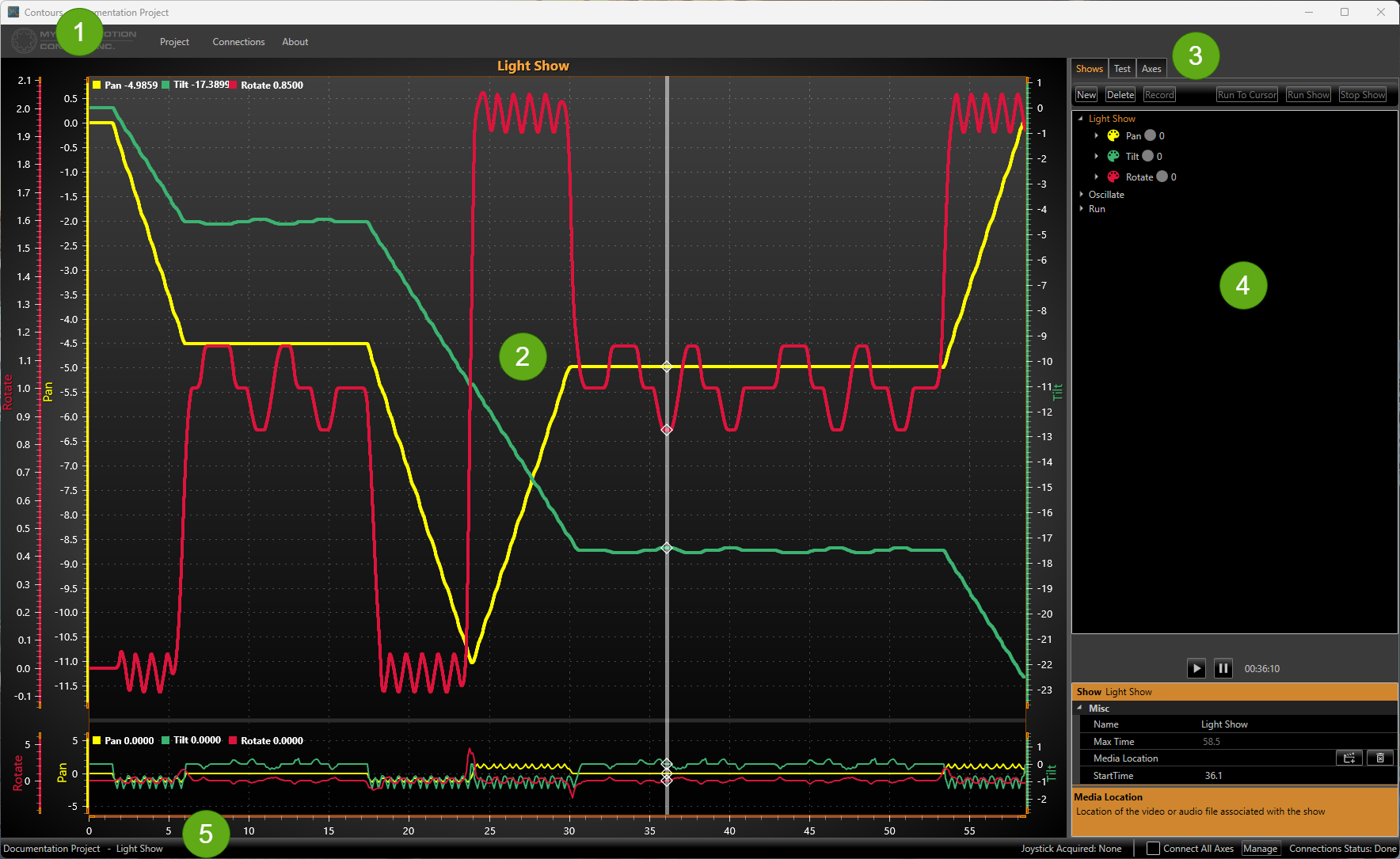
Figure 1. The Contours main window. (1) Title bar and menu; (2) layout bar; (3) chart area with position and speed traces, one colour per axis; (4) zoom bar; (5) right-hand tabs — Shows, Test, Axes; (6) Shows tree view with the Media and Show cards; (7) status bar with the selection, controller, and connection state.
Title bar
The window title always shows the name of the open project. When you start Contours without opening a project, or choose Project › New, the title reads Contours - Project until you save the new project, which then takes the name of its file (see chapter 4).
Window size and place
Contours opens where you left it: at the size and place the window had when you closed it, maximised if it was. If that place is no longer on a screen, for example because a monitor has been unplugged, it opens in the middle of the screen at its standard size.
Menus
The menu strip at the top contains three items. Each command in the Project and Connections menus shows its icon and, where it has one, its keyboard shortcut:
-
Project — New, Open, Save, Save As, Save Backup, a Recent Projects submenu, and Options (see chapter 14).
-
Connections — Manage, which opens and closes the Connections panel, and Find motors, which searches for motors (see chapter 5).
-
About — opens the About window, with the versions of Contours and its motor library, and Documentation and Support buttons that open this guide and Myostat support in your browser. Click Close or press
Escto close it.
The Myostat logo to the left of the menu is clickable and opens the Myostat website in your default browser.
Right-panel tabs
The right side of the window is a tabbed panel with three tabs. These are where almost all of your editing happens:
-
Shows — tree view of every show and its profiles; create, delete, record, edit, and run shows here. Includes a video panel for the show's media (see chapter 9).
-
Test — pick a show, choose which profiles to include, and run it in test mode. Includes a video panel for the show's media (see chapter 9).
-
Axes — list of axes; the selected axis's settings open in the Axis Setup window in the chart area (see chapter 6).
The show's video can also be popped out into its own window, which you can resize and move to another monitor (see chapter 9).
In a new project the lists are empty and say where to start: Add a Show to begin on the Shows tab, and Add an axis to begin setup on the Axes tab.
Chart area
The large panel in the centre plots the selected show over time. On the Shows tab it shows each axis's position and speed; on the Test tab, the takes together with the position, speed, and torque the motors report during a run (see chapter 13). Every axis gets its own colour. You can show or hide each axis's position and speed lines with the eye buttons under its profile in the Shows tree, and right-click on the chart (while editing) to insert or delete data points at the cursor. While the Axes tab is open, the chart area shows the Axis Setup window instead.
When there is nothing to show, the chart area shows the CoolMuscle logo instead: on the Axes tab while no axis is selected, and on the Test tab while no ticked axis is ready to run or every graph is turned off. On the Axes tab of a project that has axes, Select an axis to edit its setup. appears under the logo.
Above the chart, on the Shows and Test tabs, the layout bar sets what the chart area shows:
-
Layout — Time shows the time chart, Path shows the path that the axes of an axis group trace together, and Side by side and Stacked show both. The button beside them (Swap the panes) swaps the two panes over.
-
In the middle, the name of the selected show.
-
On the right, while the path is shown, Axis group, Colour by, and, for a three-axis group, 3-D view choose what the path draws and how. The eye button at the end opens View options: on the Shows tab, whether the time chart shows Position, Speed, or both, and, while the path is shown, which markers it draws.
Along the bottom of the chart area on the Shows tab, the zoom bar shows every axis's take over the whole show. Drag its window to zoom and pan the time chart, and click Fit all to see the whole show again. The zoom bar is hidden while you record.
See chapter 7 for the time chart, the zoom bar, and the time chart's view options, and chapter 8 for the path view, axis groups, and the path's view options.
Connections panel
Choose Connections › Manage, press Ctrl+M, or click the connection count in the status bar to open the Connections panel under the chart area. It lists the project's axes beside the motors Contours has found, and you link a motor to an axis by dragging one onto the other. Its heading holds Connect All (which reads Disconnect All once every linked axis is connected), Find motors, a pin (Keep this panel open) that keeps the panel open as you change tab or selection and opens it again the next time you start Contours, and a chevron that closes it. The panel isn't available on the Test tab or while you record. See chapter 5 for the details.
Status bar
The bar along the bottom of the window shows live status:
-
On the left, the name of the current project, then the selected show and the axis of the selected profile, separated by chevrons.
-
The game controller Contours is using, as Controller (<name>), or No controller when none is connected.
-
Searching for motors… with a spinner, only while a search for motors is running.
-
The connection count, for example 2 of 3 axes connected, with a dot that is green when every axis is connected, yellow when some are, and grey when none are. Click it to open or close the Connections panel.
-
A Connect All check box: tick it to connect every axis, or clear it to disconnect them all. It shows a dash when only some axes are connected. It is unavailable while you record.
Short messages, such as the name of a backup you have just saved, appear for a few seconds just above the status bar.