

Recording captures live position data from one or more connected motors while you move them by hand (or with a game controller). Contours samples position, speed, and torque at a fixed interval you choose.
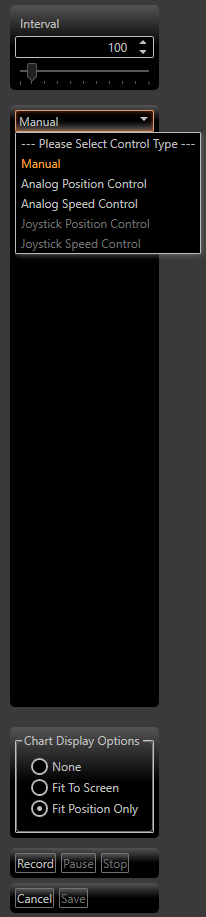
Figure 16. The Record screen. Choose a control and the sample interval on the Setup card, tick the axes to capture on the Axes card, then use Record, Pause, and Stop on the Take card. The chart draws the take as it arrives.
Preparing to record
-
Connect the motors you want to record (see chapter 5). The status bar shows how many are connected, for example 2 of 3 axes connected.
-
Select the show you want to record into, in the Shows tab.
-
Click the Record button on the Shows toolbar, or right-click the show and choose Record. The Record screen opens in place of the show list. Record is available once a show is selected and at least one of its axes is connected.
-
On the Setup card, choose the Control: Manual to move the motors by hand or by other means, or Controller Position Control or Controller Speed Control to drive them with a game controller.
-
Set the Sample interval — the time between samples, in milliseconds. The default is 100 ms. Lower intervals give smoother data; higher intervals produce less data and faster playback of the same sequence.
-
On the Axes card, tick each axis to record. An axis whose motor isn't connected says Not connected. If an axis already has a take in this show, Contours asks when you tick it, because saving replaces that take.
Until a control is chosen and an axis ticked, the Take card says what is missing and Record is unavailable.
When you choose a controller control, or tick an axis, the chart's scales for that axis change to show what the controller can reach, plus 10%:
-
With Controller Position Control, the axis's Position Range, centred on where the axis is now.
-
With Controller Speed Control, its Speed Range either way, and the position one second's travel at full speed either side of where the axis is.
-
With Manual, or a range of 0, the scales stay as they are.
So a small move no longer looks flat on a large default range. With Fit or Scroll (see Reviewing the recording below), the scales still grow if the take goes beyond them.
Tip. Start at 100 ms for your first recording. If the result feels coarse, drop to 50 ms. If the file becomes unwieldy, go up to 200 ms. Very fine intervals (below 20 ms) rarely help and make editing slower.
Tip. To record with a game controller, choose Controller Position Control or Controller Speed Control in the Setup card's Control list. Each axis's row then shows its Position Range or Speed Range and Invert, the same settings as on its Controller tab, where its Responsiveness Gain is set too (see chapter 6).
Note. While the Record screen is open, the Axes and Test tabs, the Connections panel and the status bar's Connect All box are unavailable, so connect the motors before you open it.
Capturing a performance
-
Click Record to begin capture.
-
Move the motors through the motion you want — with a game controller, by hand (if the motor is back-drivable), or with an external command.
-
Click Pause to stop capturing temporarily without ending the take; click Record again to resume.
-
Click Stop when the performance is complete.
-
Click Save to store the recording into the profile, or Cancel to throw it away.
The label at the top of the screen reads Ready, Recording, Paused or Stopped. While a take is recording or paused, the Setup and Axes cards can't be changed; the Chart card can.
To try again, click Record after Stop: Contours asks before it replaces the take you haven't saved (Record again or Keep take). Clear deletes the unsaved take and returns to Ready. Both questions offer Don't ask again until I save or cancel.
With a controller, the motors keep following the stick after Stop or Clear, until you click Save or Cancel.
If a motor doesn't accept its settings when you click Record, the take doesn't start and Contours says why. None of the axes is left following the controller.
If a motor is lost during a take
If Contours loses the connection to a ticked Ethernet or serial motor while a take is recording or paused, the take stops as if you had clicked Stop, and a message names the axis. That axis is shown as not connected, and its row is greyed out. Save then keeps the new take on the axes that are still connected; the lost axis keeps the take it had before.
A motor lost after the take has stopped — for example while it follows the controller before you save — doesn't spoil the take. It was complete, and Save keeps it. Contours notes the loss at the bottom of the window.
Recording again leaves the lost axis out. Reconnect its motor after you leave the Record screen.
Note. Contours can't yet tell when it loses an Ethernet motor set up for UDP, or a serial motor that is switched off while its USB adapter stays plugged in. Such a motor goes on showing as connected.
Watching the show video while you record
If the show has media attached (see chapter 9), its video appears on the Record screen's Media card. Click Pop out / dock video to watch the video full size — for example on a second monitor — while you move the motors. The video follows the recording controls:
-
Record on a new take starts the video from the beginning, in step with the chart.
-
Pause pauses the video; Record again resumes it from the same point.
-
Stop, Save, and Cancel stop the video and return it to the start.
While a take is in progress, the video panel's own Play and Pause buttons are disabled.
Reviewing the recording
The take is drawn on the chart as it arrives. The chart shows the same panes as on the Shows tab, so the Position and Speed choices under View options on the bar above the chart still apply (see chapter 7). Torque is recorded with every take but isn't drawn on this chart.
The Chart card sets how the chart follows the take. You can change it during a take, and the change applies at once:
-
Fit, the default, shows the whole take from 0 s to a little past the newest sample, and grows each scale to fit.
-
Scroll shows a fixed stretch of time, the Window in seconds, with the newest sample a tenth of the way in from the right-hand edge, and grows each scale to fit. The window starts at the Chart length in Options (see chapter 14); a width you type is kept until you open another project.
-
None leaves the chart where it is, for you to zoom and pan yourself.
Each time you click Record, after Pause too, the chart is set back: the time as the choice shows it (the whole show for None), and each scale to what its controller can reach.
If the chart area is showing the path view, the take's path is drawn live as you record (see chapter 8).
After saving, the new take replaces any take the axis already had in that show, whether it was recorded or imported.