

Creating a show
-
Go to the Shows tab.
-
Click the + button (New show) at the top of the list.
-
The new show appears at the bottom of the list, selected, with one profile automatically created for every axis. The list scrolls down to it.
-
Rename the show to something descriptive like Opening, Interlude, or Finale, in the Name box on the Show card below the list.
When a project has no shows yet, the list says Add a Show to begin.
To delete a show, select it and click the bin (Delete show) at the top of the list, or right-click it and choose Delete. If any of its axes has a take, Contours asks before deleting it.
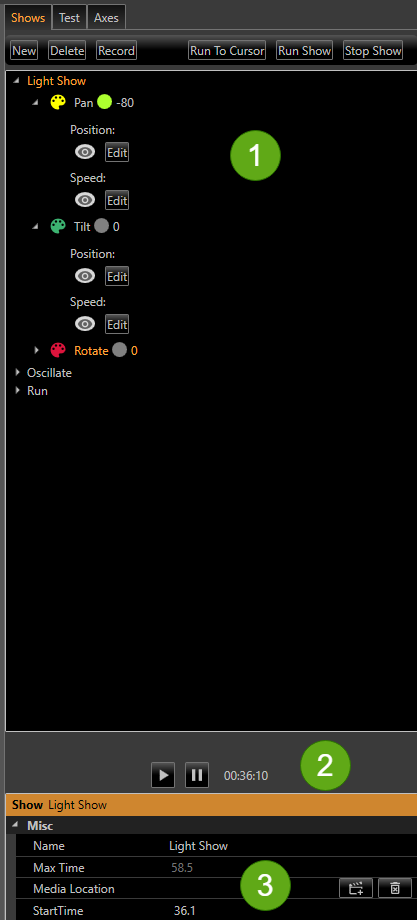
Figure 9. The Shows tab with the show(1) expanded to reveal one profile per axis; profiles expand further to their Position and Speed rows. (2) Media can be loaded to synchronise and play in parallel while developing the show. (3) The Show card.
To attach a video or audio file to the show and play it in step with the chart, see chapter 9.
Working with profiles
Each profile corresponds to one axis within one show. When you click a profile, the chart area shows its data for easy review. Right-click anywhere on a profile's row to see the common actions. The row is selected first, so the menu always acts on the profile you clicked:
|
Menu item |
What it does |
|---|---|
|
Clear Profile |
Erases this axis's take in this show. There is no confirmation, but nothing is lost until you save the project. |
|
Load Profile |
Loads previously saved profile data from a file. |
|
Save Profile |
Exports the profile's data to a file so it can be reused in another show or project. |
|
Import |
Opens the Import window for this axis only, to bring motion in from a file. See chapter 12. |
Expand a profile to see its Position and Speed rows. The eye on each row shows or hides that line on the chart, and the pencil opens the point editor (see chapter 11). Right-clicking either row selects its profile and opens the profile's menu.
A show's own right-click menu has Delete, Record (see chapter 10) and Import (see chapter 12). The ⋮ button at the top of the list has Import and the three profile commands too. New shows are made only with the + button.
Saving and loading profiles
Saving a whole project is the normal way to persist your work. Saving a single profile is useful when you want to reuse a specific motion elsewhere — for example, copying a great tilt move from one show into another.
How long a show is
A show is as long as its longest take. An axis with no take yet doesn't count, so a show in which only one axis has a 10 s take is 10 s long. A show with no takes at all, such as a new one, is the Chart length set in Options (see chapter 14), and goes back to it if you clear its last take.
The show's length sets the end of the chart's time axis, how far the cursor can go, and the length of the charts on the Test tab. The Show card's Cursor line gives both, for example "2.5 s of 10.0 s". With a profile selected, its Take line gives the take's point interval, number of points and length, or says No take when that axis has no take in this show.
The chart area
The chart area beside the tabs shows the selected show. The layout bar above it chooses what the chart area holds: the time chart, the path view (two or three axes drawn against each other), or both, side by side or one above the other. Side by side is the default. The selected show's name is in the middle of the bar. To see only the time chart, choose Time under Layout. Layouts and the path view are described in chapter 8; this chapter covers the time chart.
The time chart has a Position pane above a Speed pane, with one line per axis in that axis's colour. Each pane is labelled Position or Speed in its top-left corner, and each axis's scale is titled with its name and unit, for example Pan (mm) and Pan (mm/s). Drag the line between the panes to change their sizes. Torque isn't shown on the Shows tab's chart; it is on the Test tab's charts (see chapter 13). The chart, the zoom bar under it and the path view share the same plain dark background.
Until a show is selected, and for an axis with no take yet, the panes use the Chart defaults ranges from Options (see chapter 14). A take that holds one position all the way through is drawn over those ranges too, or over a span of the same size centred on it if it lies outside them.
Drag the cursor, the vertical line across the chart, to move through the show; it lands on the take's points. When you let go, the motors run to the positions at the cursor: every axis in the show when a show is selected, or only that axis when a profile is selected. See Run To Cursor in chapter 13.
Showing or hiding Position and Speed
Click the eye (View options) at the right-hand end of the layout bar. Its Time chart section has a Position tick and a Speed tick. Untick one to fold that pane away, and the other fills the chart. Tick it again to bring it back at the size it had.
-
One pane always shows, so the tick of the only pane left is greyed.
-
While the point editor is open, the pane being edited shows even if you unticked it. Its tick is greyed, and the panel says The chart being edited stays shown. The pane folds away again when the editor closes.
-
Your choice is remembered between runs, and also applies on the Record screen.
The panel's Path section is described in chapter 8. Ticking inside the panel doesn't close it; click anywhere outside it to close it.
Same scale for the same unit
Each axis has its own scale, fitted to its take, so a small move fills the pane as well as a large one. To compare axes that move in the same unit, tick Same scale for the same unit in the Time chart section of View options. Axes with the same unit, such as two in mm, then share one range in the Position pane and one in the Speed pane: the smallest that holds all of their takes. An axis with another unit, or no unit, keeps its own range.
-
Each axis still has its own scale beside the chart, now with the shared range.
-
Fit all uses the shared ranges too.
-
The tick is remembered between runs. It applies to the Shows tab's chart, not the Test tab's.
The zoom bar
Along the bottom of the chart area on the Shows tab, the zoom bar shows every axis's take over the whole show, in every layout. Above it, a line says which stretch the time chart is showing, for example "Showing 2.0 – 6.5 s of 10.0 s", with Fit all at the right. The bar is hidden while you record.
-
Zoom the time chart with the mouse wheel, or by dragging a box over the stretch you want. The bar's window narrows to match. Drag a box from right to left instead to fit everything again, as Fit all does. Zooming or panning stops at the start of the show: the time never goes below 0 s.
-
Drag the window along the bar to move through the show, or drag either end of it to zoom in or out. Both ends can be grabbed even when the whole show is in view.
-
Click Fit all to show the whole show again.
-
The bar has its own cursor, the same colour as the chart's. Drag it and the chart's cursor follows, landing on the take's points. It can't be dragged off either end of the bar. When you let go, the motors run to that point, just as when you let go of the chart's cursor.
The path view follows the zoom: it draws the stretch shown at full colour and fades the rest (see chapter 8).
Caution. Letting go of the cursor, on the chart or on the zoom bar, moves the connected motors to their positions at that time. Make sure the machine is clear before you drag the cursor.