

Raw recordings almost always benefit from a few touch-ups. On the Shows tab, expand a profile and click the pencil on its Position or Speed row to open the point editor.
The editor takes over the whole side panel while it is open, so the show tree and the toolbar above it are hidden. Save and Cancel at the foot of the panel are the way out.
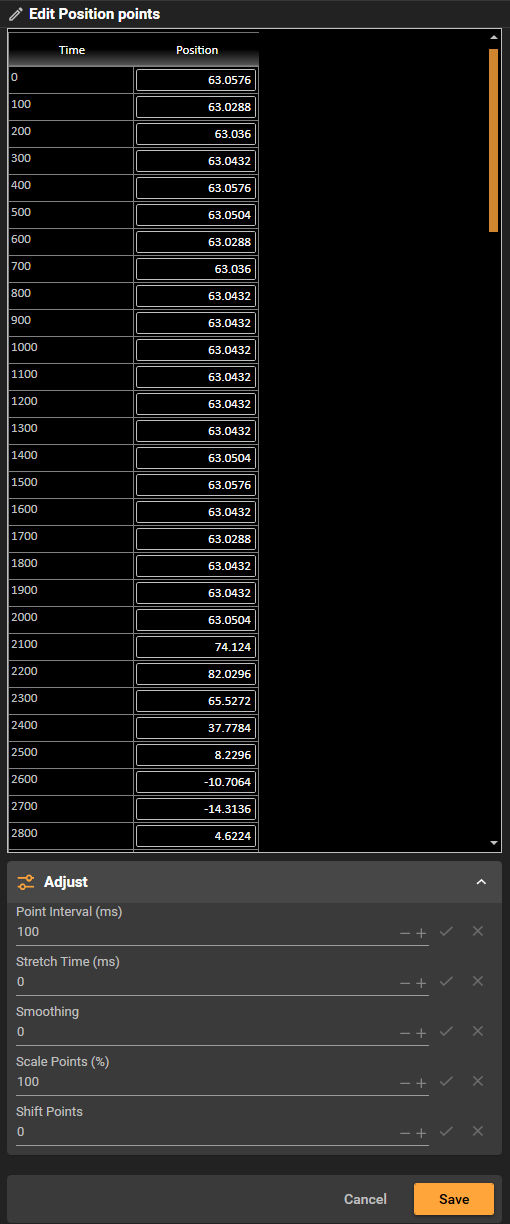
Figure 17. The point editor. The grid of points sits above the Adjust card, which changes a whole run of them at once, with Save and Cancel at the foot.
While you edit, the chart shows the pane you are editing, Position or Speed, even if you had folded it away. If the chart area was showing the path alone, the time chart comes back beside it, and the path follows your edits as you make them (see chapter 8).
Editing individual data points
Recorded points appear in the grid and on the chart. You can:
-
Click a value in the grid and type a new one. The marker and the curve follow each keystroke. Esc puts back the value the edit began with.
-
With one row selected, just type a number: a digit, a minus sign or the decimal separator opens its value. Tab and Shift+Tab move down and up the value column.
-
Drag a marker up or down on the chart. The grid follows, and the marker's label shows the value as it moves.
-
With two or more points selected, drag any one of them to move them all by the same amount. Dragging a point that isn't selected moves it alone. Letting go over another point doesn't select it.
-
Right-click a row and choose Insert to add a point after each selected point, with the same value, or Delete to remove every selected point. Ins and Del do the same. The inserted points are left selected.
-
Right-click the chart for the same Insert and Delete.
The grid has two columns: Time (s), the time of each point in seconds, which is set by the point interval and cannot be typed into, and its value — position or speed, depending on which row's pencil you used. Values are shown to the axis's Position decimals (see chapter 6), but a value you type keeps every digit. The grid is always in time order. Hover over a point on the chart to see its time and value in the same form.
Selecting points
Select points in the grid or on the chart; the two always show the same selection.
-
Click a point to select it alone. Shift-click to select everything between it and the selection.
-
Ctrl-click to add a point to the selection or take it out. A selection made this way can have gaps.
-
Selected rows are orange, and the cell you are on is outlined.
To clear the selection, click Clear the selection at the end of the line under the Adjust card, press Esc in the grid or the chart, or click an empty part of the chart. If you have just typed a new value, the first Esc puts the old value back and a second clears the selection.
Copying and pasting data points
A quick way to populate a new profile or insert a block of points into an existing one is to use copy and paste. This is especially useful when you have position values prepared in a spreadsheet or text file.
To copy points from the grid:
-
Select one or more rows in the grid.
-
Press Ctrl+C, or right-click and choose Copy. Contours copies the values of the points from the first selected to the last to the clipboard — one value per line.
Note. Copy captures values only, not time values. Time is always recalculated automatically on paste based on the current Point Interval setting.
To paste points into a profile:
-
Prepare a list of numeric position values — one value per line — in your clipboard (for example, copied from a spreadsheet column or a text file).
-
In the grid, click the row where you want the new points to be inserted.
-
Press Ctrl+V, or right-click and choose Paste. Contours inserts the pasted values, in order, before the selected row, with time values assigned automatically based on the current Point Interval. The pasted points are left selected.
This works both when the grid is empty (building a new profile from scratch) and when inserting additional points into an existing profile.
Note. Only plain numeric values are accepted. Each line must contain a single number. Blank lines are ignored. If any value cannot be parsed as a number, the paste is cancelled and an error sound plays.
The six adjustments
The Adjust card changes a whole run of points at once. The six work the same way as each other, so what you learn on one applies to all of them. The (i) beside each name explains it, and each box shows its unit.
|
Adjustment |
What it does |
|---|---|
|
Point Interval |
The time between points, in milliseconds. It opens at the take's interval. Increasing it stretches the whole take out and plays the show more slowly; decreasing it speeds the show up. The point values themselves are not changed. |
|
Stretch Time |
Makes the selected region longer or shorter by this many milliseconds, in whole point intervals, and moves everything after it along. Use a negative value to shorten. |
|
Smoothing |
Blends each point with the two either side. |
|
Scale Points |
Scales values about zero, in percent, so |
|
Shift Points |
Moves points up or down by this much, in the axis's own units (per second when you are editing speed). Type a negative amount to shift down. |
|
Invert |
Turns the motion upside down about zero: tick Inverted, and each point's value becomes its negative, so 5 becomes −5 and 0 stays 0. Use it for an axis that was recorded or imported the wrong way round. It isn't offered when you edit Speed. |
Previewing, keeping and discarding
Every adjustment shows you the result before you commit to it.
-
Type a value, or use the up and down arrows beside the field; for Invert, tick Inverted. The chart updates as soon as the value is committed — when you press Enter, use an arrow, or move to another field.
-
Look at the chart. The change is already on it; it has not yet been written into the profile.
-
Click the tick to keep it, or the cross to put the points back as they were.
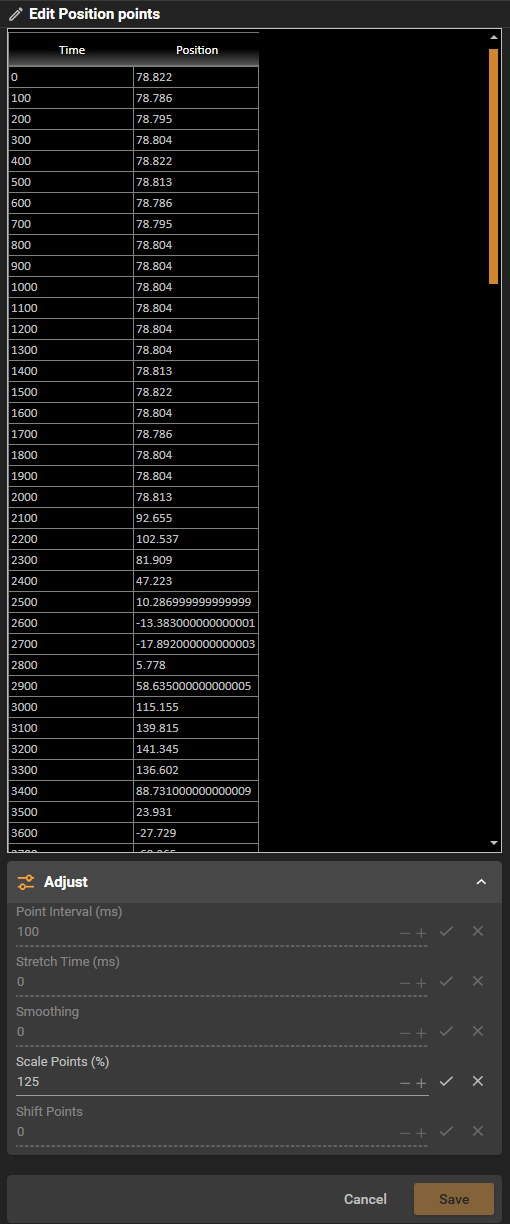
Figure 18. Scale Points set to 125 and waiting on its tick. The grid values already show the change. Only this row's tick and cross are available, the other adjustments are greyed out, the grid has stopped accepting edits, and Save is unavailable until the change is kept or discarded. Cancel still is.
While an adjustment is waiting on its tick or cross, the others are unavailable and the grid will not accept edits — you can still scroll it to see what the change did. Insert, Delete and Paste are unavailable, the selection can't be cleared, and a point dragged on the chart springs back to where it was. Save is unavailable too, so a half-finished adjustment cannot be written into the profile by accident. Cancel always works.
Note. Scale Points returns to 100 and Stretch Time returns to 0 once you press the tick. That is correct: the change has been absorbed into the points, so there is nothing left pending. The values themselves keep the change, and the same points stay selected for the next adjustment.
What an adjustment applies to
With nothing selected in the grid, an adjustment applies to every point in the take.
To change only part of a take, select those points first (see Selecting points above). The line under the Adjust card always says what the next adjustment will act on, for example Applies to the whole take - 412 points or Applies to 46 selected points. If it is too long to fit, click the (i) at its end to read all of it. While an adjustment is waiting, the line describes the points it is changing.
The six read a selection in different ways:
-
Invert, Scale Points and Shift Points change each selected point, gaps and all.
-
Smoothing works on each continuous run of three or more selected points and leaves shorter runs alone. It is greyed out until a run is long enough.
-
Stretch Time needs a continuous run of two or more points. It is greyed out with one point selected, or a selection with gaps.
-
Point Interval always retimes the whole take.
Caution. Heavy smoothing softens fast movements and can flatten intentional accents. Always compare the smoothed curve against the original before committing with Save.
Saving your edits
Click Save to write your edits back into the profile, or Cancel to throw them away and leave the take as it was. Either one closes the editor and brings the show tree back.
Save the project as well to keep the edits (see chapter 4). If you close Contours or open another project first, Contours asks whether to save.